1080p, high refresh
Competitive games like Valorant, CS2 and Fortnite at high frame rates. The processor matters more here, because it has to keep up with the frames.
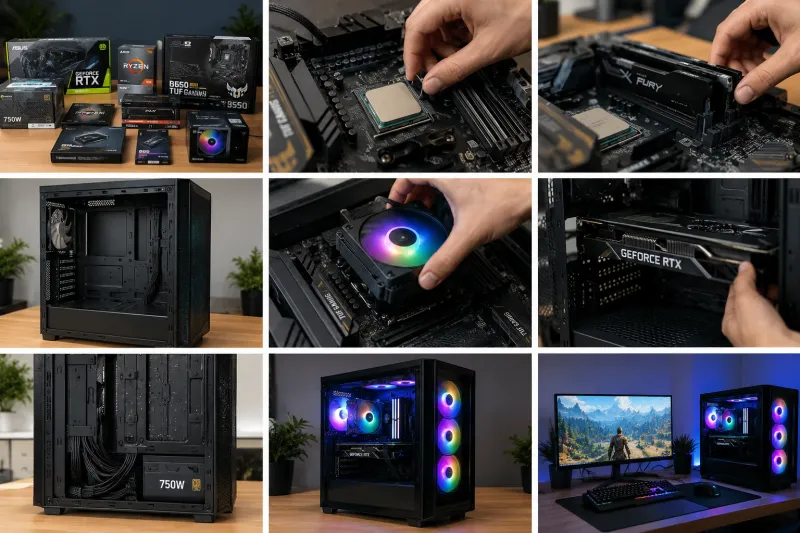
Which parts you need, how to make sure they work together, the build itself in nine steps, and the setup that makes a new PC run cool and fast in UAE conditions.
Less than it looks. A gaming PC build is mostly matching the right parts and plugging them in the right order, with a single screwdriver. A first build usually takes an afternoon, and most of that time goes on cable routing and reading the motherboard manual.
The part that decides whether the PC is any good happens before you open a box: choosing parts that suit the games you play, fit together, and get enough power and cooling. Get that right and the assembly is the easy bit. This guide covers both.
Eight components make up every gaming PC. Each one has a job, and a compatibility point that trips up first-time builders.
| Component | What it does | What to check |
|---|---|---|
| Graphics card (GPU) | Draws every frame; the biggest factor in gaming performance | Matches your monitor's resolution and refresh rate; fits the case length |
| Processor (CPU) | Runs the game logic, background apps and streaming | Socket matches the motherboard; enough cores if you stream or edit |
| Motherboard | Connects everything together | Same socket and chipset as the CPU; right size (ATX, Micro-ATX, Mini-ITX) for the case |
| Memory (RAM) | Short-term working space for games and Windows | DDR4 or DDR5 to match the board; two sticks for dual channel |
| Storage (SSD) | Holds Windows and your games | An NVMe M.2 SSD for fast loading; enough space, as modern games are large |
| Power supply (PSU) | Feeds stable power to every part | Enough wattage with headroom, a known brand and an 80 Plus rating |
| CPU cooler | Keeps the processor from slowing down when hot | Fits the socket and the case height or radiator space |
| Case | Holds the parts and sets the airflow | Mesh front panel, dust filters, room for the GPU and cooler |
Rule of thumb for gaming: put the largest share of the budget into the graphics card, then the processor, and never cut corners on the power supply.
The monitor decides how much graphics power you need. Plan the build around it, not the other way round.
Competitive games like Valorant, CS2 and Fortnite at high frame rates. The processor matters more here, because it has to keep up with the frames.
The sweet spot for most players: sharper than 1080p without the cost of 4K. A strong mid-range or upper mid-range graphics card does the work.
Single-player games at maximum detail. Needs a top-tier graphics card, a power supply sized for it and a case that can move a lot of air.
A mid tower gaming PC case suits most builds: room for a full-size graphics card, a 240 or 360 mm radiator and easy cable routing. A full tower is for custom water cooling or a lot of storage. A mini gaming PC in a small form factor (Mini-ITX) case looks neat on a desk, but space is tight, cooling is harder and some graphics cards will not fit, so check every dimension first.
Whatever the size, choose a case with a mesh front panel and removable dust filters. A glass panel and RGB lighting are a matter of taste; airflow is not.
Tools: a Phillips #2 screwdriver, cable ties and a torch. Work on a table, touch a metal part of the case now and then to discharge static, and keep the manuals open.
Lay the motherboard on its box, not on carpet. Fit the processor first: line up the arrow on the CPU with the mark on the socket, lower it in without pressing, and close the lever.
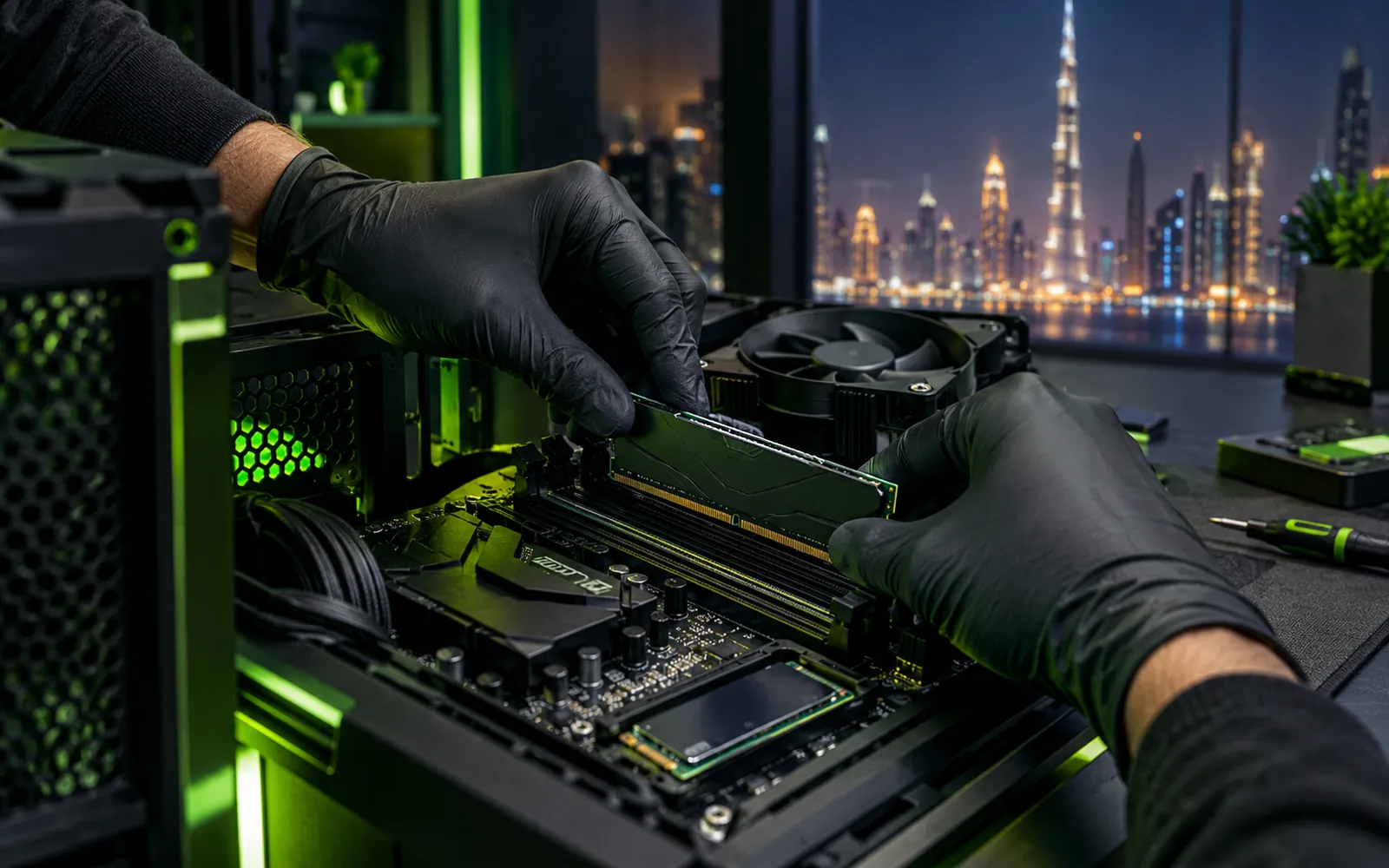
Click the RAM sticks into the slots the manual marks for two sticks (usually the second and fourth), so they run in dual channel. Screw the M.2 SSD into its slot under the heatsink.
Most coolers come with thermal paste already applied; if not, a pea-sized dot in the centre is enough. Tighten the screws a little at a time in a cross pattern, then plug the fan into the CPU_FAN header.
Check the standoffs line up with your motherboard holes, fit the I/O shield if it is not built in, and decide where the radiator or fans go before anything else is inside.
Lower the board onto the standoffs at an angle so the ports go through the I/O shield, then screw it down firmly but without forcing it.
Mount the PSU fan-down if the case has a bottom vent. Run the 24-pin, CPU 8-pin and graphics card cables behind the motherboard tray before you fit the GPU.
Remove the slot covers, push the card into the top PCIe x16 slot until it clicks, screw it to the case and connect its power cables fully. Use a support bracket for heavy cards.
Plug in the power switch, USB, audio and fan cables using the motherboard manual. This is the fiddliest step, so take it slowly and check each pin label.
Plug the monitor into the graphics card, not the motherboard. Enter the BIOS, check every part is detected, turn on the XMP or EXPO memory profile, then install Windows, chipset and graphics drivers.
A PC that turns on is not finished. These checks are what separate a smooth machine from one that stutters, runs hot or crashes in the middle of a match.
Guides written for cooler countries miss a few things that matter here.
Rooms get warm in summer, especially when the AC is off during the day. Size the cooler and case fans for the hottest days, not a mild spring evening, and keep the PC out of direct sun.
Fine desert dust builds up fast. Dust filters on every intake, slightly more intake than exhaust airflow, and a clean every few months keep temperatures down.
Buy parts with a UAE warranty so claims are handled locally, and plug the PC into a good surge protector to guard against power spikes.
If you would rather skip the compatibility research and the cable routing, we can do it. Tell us the games you play, your monitor and your budget, and we will send a parts list that explains where the money goes, then assemble, set up and stress test the PC. See our custom gaming PC builds in Dubai, or read prebuilt vs custom gaming PC to compare your options. Already own a PC that needs more power? Our computer upgrade and repair service can help.
A first build usually takes three to five hours, including reading the manuals and tidying the cables. Installing Windows, drivers and updates adds another hour or two.
Often, yes, because you pay only for the parts and avoid spending on weak components. The bigger advantage is control: you choose where the budget goes, such as a better graphics card or power supply.
The graphics card has the biggest effect on gaming performance. The processor matters more for high-refresh competitive games and streaming, and the power supply matters for stability and safety.
Match the CPU socket and chipset to the motherboard, the RAM type (DDR4 or DDR5) to the board, the board size to the case, and check the graphics card length and cooler height fit the case. Make sure the power supply has enough wattage and the right cables.
Most CPU coolers come with thermal paste already applied, so you do not need extra. If you reinstall a cooler, clean off the old paste and apply a small new dot in the centre of the processor.
Send us your list on WhatsApp and we will check compatibility, power and cooling before you buy.